WEB BUTTONS HOW TO'S
 |  |  |  |  |
 How To's
 Menus And Submenus In Javascript
- Free Button Menu Dropdowns
- Tree Menu Using Html
- Free Javascript Dropdown Menu Example
- Dropdown Menu Howto
- Drop Down Navigation Menu
- How To Create Submenu By Javascript
- Html Form Drop Down Menu
- Animated Submenu
- Flex Transparent Dropdown Menu
- Javascript Submenu
- Unobtrusive Collapsible Menu Script Javascript
- Html Collapsible Tree Menu
- Sample Submenu In Javascript
- Html Coding Drop Down Menu
- Stylish Html Menu
 Features
 Online Help
  FAQ
FAQ


 |  |
QUICK HELP
HOW TO CONSTRUCT MULTIPLE MENU
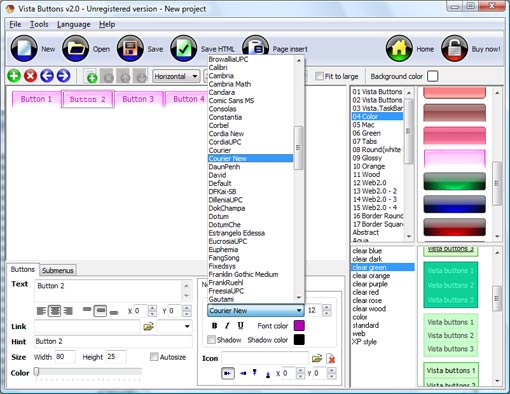
1) File menu Export images - to save menu buttons' images as gif-files (*.gif), png-files (*.png) or jpg-files (*.jpg). "Save As�" dialog will appear, where you can either type each button name or leave it unchanged. If you want to save the button images, press "Save". "Save settings" dialog will appear where you can choose image format. Either way (if you don't want the button images to be saved), press "Cancel". This procedure will be repeated for all the menu buttons. When you press "Save", 1 to 3 images are to be saved, depending on the menu type. Their names will be: ButtonName_0.gif - ButtonName_2.gif, where ButtonName is the name you have entered when saving. 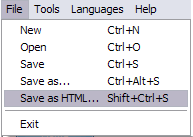
New - to create new project.
Open - to open saved project. You will be asked if you would like to save the current project in the menu buttons creator.
Save - to save current project in the project file (*.xwb). When you save to project file, the directory "ProjectName.xwb.icons" is created, where ProjectName is the name of your project file. This directory contains button icons, .css and .js files of the saved menu.
Save as� - to save current project in the project file (*.xwb) or in the HTML file or to save your project under another name. Choose type from the "File type" list in the "Save as�" dialog and enter project's (new) name. When you save to project file, the directory "ProjectName.xwb.icons" is created, where ProjectName is the name of your project file. This directory contains button icons, .css and .js files of the saved menu. If the menu doesn't have any icons then the directory is not created.
Save as HTML - to save current project into the HTML file (*.html). Project HTML file will be saved then, and the directory created, containing buttons' images. The directory name will be: "YourProjectName-files", where YourProjectName is the name of the HTML file saved. For example: if you enter "Header" in the "Name" field of the "Save as�" dialog, then "Header.html" and directory named "Header-files" will be created.
Exit - to close Vista buttons application.
2) Tools
Theme editor - to edit/create new themes.
Page insert - you can insert your menu into the existing HTML page.
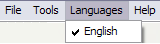
The "Languages" menu contains the list of available interface languages. English is the default language setting.
4) Help menu
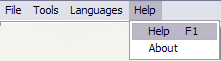
Help - to read the help.
About -show information about Vista Buttons.
DESCRIPTION
 |  |  |
Easy, quick, professional Css Simple Horisontal Menu Its very easy to create professional high-quality web buttons with the help of Dropdown DHTML Menu. Once installed you�ll be making buttons for your web site with no programming or drawing required. Seamless Integration C Code Download
Best Web Page How To Construct Multiple Menu Easy to Use
| |  |
RELATED
MENU SAMPLES
Tabs Style 3 - Buttons ImagesTabs Style 6 - Buttons Design
Drop Down Menü Java Script Generator Tabs Style 4 - Icons Buttons
Vista Style 2 - Web Button
Tabs Style 7 - Button Menu
Common Style 2 - Navigation Buttons
Tabs Style 5 - Web Page Buttons
Javascript Using Effective Drop Down Menu
Tabs Style 8 - Web Site Graphics
SELECTED SAMPLE