How To's 
Dropdown Menu Javascript
Html Drop Down Menu Code Generator
Constructing A Drop Down Menu
Css Collapsible Drop Down Menus
Html Collapsable Menu Bar
Creating Submenu S In Html
Expandable Menu List Using Java
Submenu Html Code
Html Drop Down Menus
Dynamic Menu Ajax
Animated Collapsible Menu Html
Collapsible Submenu
Menus Html
Crear Menu En Bash
Collapsible Menu In Javascript
Creating Menu And Submenu Using Javascript
Features
Online Help
FAQ
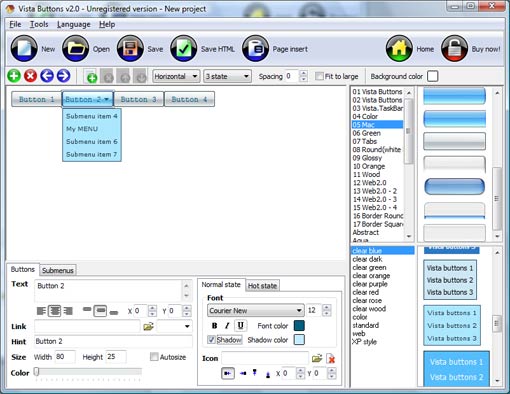
Button builder toolbar After that, you can edit your code to prepare the page for the menu insertion. Normally, no coding is required. Then set the cursor to the line you want menu code to be inserted to and click the "Insert" button. The menu code will be inserted into the page. Then you can either save the page or close the dialog without saving by clicking "Save" or "Close" buttons. Menu type - to select menu type (1-state, 2-state, 3-state and 3-state toggle).
New - to create new project.
Open - to open existing project.
Save - to save current project into the project file (*.xwb).
Save as� - to save current project into the project file (*.xwb) or into the HTML file or to save your project under another name. Choose type from the "File type" list in the "Save as�" dialog.
Page insert - to insert your menu into the existing web-page. "Build the menu into your page" dialog will appear. Click "Browse" button to choose a page you want to insert your menu into. After choosing a page and clicking Ok, the chosen page's HTML code will be opened in the Code field of the dialog.
Add button - to add website buttons to the menu.
Delete button(s) - to delete selected button(s). Is inactive if no button is selected.
Move button(s) - to change selected button's order in the menu. Selected button(s) will be moved one position left/right each time you click one of the Move buttons.
Add submenu's item - to add submenu's item to the menu. Is inactive if no button is selected.
Delete button(s) - to delete selected submenu item(s). Is inactive if no button is selected.
Move submenu's item - to change selected submenu's item order in the menu. Selected item(s) will be moved one position up/down each time you click one of the submenu's item.
Menu orientation - to select menu orientation (vertical or horizontal). In vertical menu all website buttons are arranged in a column and have the same width. If the menu is horizontal then all its buttons are arranged in a row and have the same height.
1-state buttons are simple static image buttons. Example:


2-state buttons respond to mouseOver event creating rollover effect. Mouse click doesn't change the button appearance. Example:
![]()
![]()
![]()
![]()
3-state buttons support both mouseOver and mouseClick event. Example:
![]()
![]()
![]()
![]()
3-state toggle buttons additionally stick in the pressed state after a click. Example:
![]()
![]()
![]()
![]()
Spacing - to add space between all buttons.
Fit to large - to make all the menu buttons have the same size. The size will be automatically set to accommodate the biggest text and/or icon in the menu.
Background color - click the square to select Work area's background color.
Adjusting menu appearance Draggable Drop Down
Not a string of code! Abhängige Menüs Mit Javascript
Change Java Icon Menu Bar Jframe Html List Menu Not just buttons DHTML Dropdown Menu is able to create not just separate images of buttons, but also complete web menus. These menus can be either horizontal or vertical, they support �rollover� and �click� effects with full set of javascript and html code.