QUICK HELP
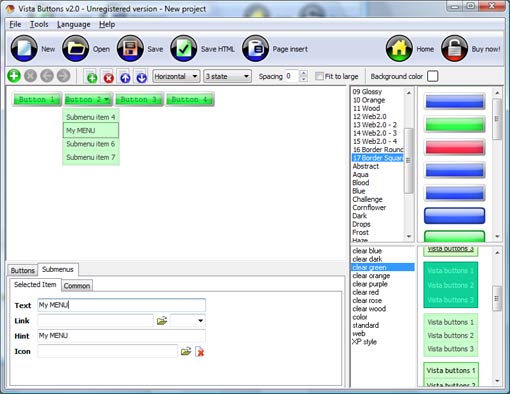
Save your menu. Save your project file. To save project just click "Save" button on the Toolbar or select "Save" or "Save As�" in the Main menu. Save your menu in the HTML format. To do it click "Save HTML" button on the Toolbar or select "File/Save as HTML..." in the Main menu. Insert your menu into the existing HTML page. To do so, click "Page insert" button on the website buttons Toolbar.
JAVASCRIPT MENU MOUSE OVER SUBMENU
Now it is time to save your project file. Note that you are free to save your project at any time. To save project just click "Save" or "Save As" button on the Toolbar or select "Save" or "Save As" in the Main menu. The "Save as�" dialog will appear, where you should select a place you want project to be saved to, and enter the project name. After clicking "Ok", project will be saved.
Also, you can save your menu in the HTML format. To do it click "File/Save as HTML" in the Main menu. "Save As�" dialog will appear, where you should select a path you want your project HTML to be saved to, and the HTML page name. After clicking Ok, page containing your menu will be saved.
Also, you can insert your menu into the existing HTML page. To do so, click "Page insert" button on the Toolbar. "Build the menu into your page" dialog will appear. Click "Browse" button to choose a page you want to insert your menu into. After choosing a page and clicking "Ok", chosen page's HTML code will appear in the Code field of the dialog.
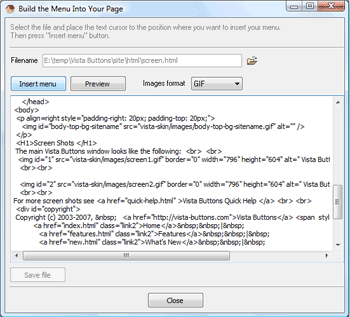
After that you can edit your code. Then set the cursor to the line you want menu code to be added to and click the "Insert" button. The menu code will be inserted into the page. Then you can either save the page or close the dialog without saving.
DESCRIPTION
Setup menu parameters manually or using Drop Down HTML Menu GUI interface. Then save your code in html page and your menu is ready! Use one of the predefined buttons' and submenus templates cretae your own themes in Drop Down HTML Menu application
| Instant preview |
- Each change of button-menu appearance is instantly displayed in the Preview Window.
- At the same time, you will be able to test how the buttons would respond to the mouse events.
|
Creating Web Parts On The Fly | Total control of all menu parameters |
- Each parameter of a html buttons may be easily changed, allowing you to achieve the required result.
- You can set such parameters as direction, size, color, font face, font style, shadow, icons, alignment, links, targets, tooltips, word wrap, and other parameters.
- Any change can be undone by pressing "Undo" button.
|
Css Ajustar Imagen A Boton| Css Slide Out Menu With Image Javascript Menu Mouse Over Submenu |
| Professional Look-n-feel |
- Entirely customizable look-n-feel
- DHTML Dropdown Menu provides 500+ web buttons, 100 submenu designs, 50 ready-made samples
- Vista, XP, Win98, Mac, Aqua buttons, round, glossy, metallic, 3d styles, Web 2.0 style, tab menus, drop down menus will be a breeze!
- Create your own templates
|





 How To's
 Menus Html
 Features
 Online Help
  FAQ
FAQ