BlogHELPSAMPLESBUY NOW!DOWNLOAD
Html Code Submenu ScreenShot

BUY NOW!    FREE TRIAL DOWNLOAD

   QUICK HELP

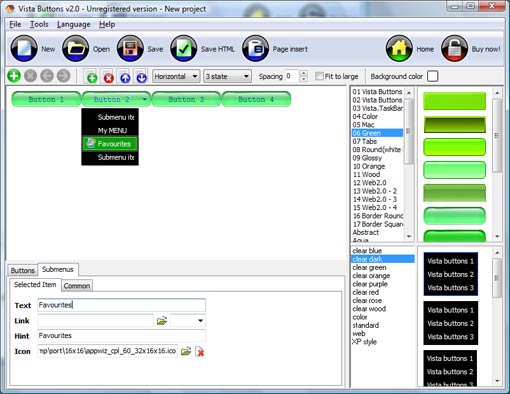
  • Click "Add button" and "Add submenu's item's buttons to create your menu.
  • You can use ready to use Templates. To do it just select theme you like in the "Button themes" and "Submenu themes" list. Then you can browse this theme's button backgrounds. When you find a button background or submenu theme you like, double-click it to apply.
  • Select vista button or submenu by clicking it and change button appearance for normal and mouse over states and set buttons/submenus link properties and link target attributes.
  • Save your menu as project file, as HTML page or insert your menu into the existing HTML page

  •    HTML CODE SUBMENU

  • Now it is time to save your project file. Note that you are free to save your project at any time. To save project just click "Save" or "Save As" button on the Toolbar or select "Save" or "Save As" in the Main menu. The "Save as�" dialog will appear, where you should select a place you want project to be saved to, and enter the project name. After clicking "Ok", project will be saved.

  • Also, you can save your menu in the HTML format. To do it click "File/Save as HTML" in the Main menu. "Save As�" dialog will appear, where you should select a path you want your project HTML to be saved to, and the HTML page name. After clicking Ok, page containing your menu will be saved.

  • Also, you can insert your menu into the existing HTML page. To do so, click "Page insert" button on the Toolbar. "Build the menu into your page" dialog will appear. Click "Browse" button to choose a page you want to insert your menu into. After choosing a page and clicking "Ok", chosen page's HTML code will appear in the Code field of the dialog.


    After that you can edit your code. Then set the cursor to the line you want menu code to be added to and click the "Insert" button. The menu code will be inserted into the page. Then you can either save the page or close the dialog without saving.
  •    DESCRIPTION

  • Setup menu parameters manually or using Drop Down HTML Menu GUI interface. Then save your code in html page and your menu is ready!
  • Use one of the predefined buttons' and submenus templates
  • cretae your own themes in Drop Down HTML Menu application

  • BUY NOW!    FREE TRIAL DOWNLOAD MORE INFO

    Dhtml Vertical Menu Tree SlidingDesign Menu On The Left
    Easy, quick, professional
    Its very easy to create professional high-quality web buttons with the help of Drop Down HTML Menu. Once installed you�ll be making buttons for your web site with no programming or drawing required.
    Fully Customizable
    • Every button or menu parameter can be easily customized in Dropdown DHTML Menu to fit your web site design and your needs.
    • Create your very own html menus, as simple or as complex as you want!
    Css Disable Bar Html Code Submenu
    Vista-style menus
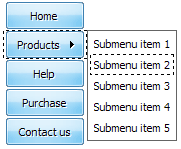
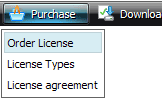
    Web menus, which are created by DHTML Dropdown Menu, exactly correspond with Windows Vista graphic interface components. That is why the visitors of your site will not have to spend their time in order to familiarize with the unusually-looking navigation. Nevertheless, you are not limited by the standard Windows themes, and you will be able to create your own original buttons.

    BUY NOW!    FREE TRIAL DOWNLOAD MORE INFO

       RELATED