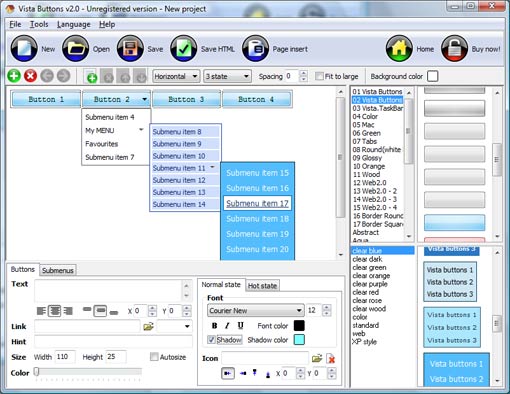
Click "Add button" and "Add submenu's item's buttons to create your menu.
Create your own buttons or use ready to use Templates.
Select vista button or submenu by clicking it and change button appearance for normal and mouse over states and set buttons/submenus link properties and link target attributes.
Save your menu as project file, as HTML page or insert your menu into the existing HTML page
EXPANDABLE TREE MENU
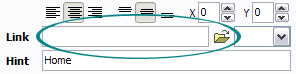
Now let's set the html buttons web-behavior. That is, set their Link properties. To set the button link, select the button by clicking it and then enter the link address in the "Link" field on the Properties toolbox.
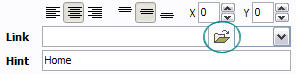
Another way to set the button link is to select it and then click the "Select page" button on the Properties toolbox. Open dialog will appear, in which you can select the page you would like to link to. This page's address will then appear in the "Link" field.
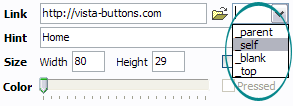
Also, you can assign link target attributes for each button. This will define where a linked page will be opened in your Web-browser. For example "_blank" attribute will open the linked page in new browser window. Note that link target attribute act exactly like the Target attribute of the <a> tag in HTML. To set button link target attribute, just select the button and then either choose one of the predefined values from the "Link target attributes" list on the Properties toolbox or enter your own value (window/frame name, where the linked page should be opened). Learn more about link target attributes from the user guide.
DESCRIPTION
Double click on the one of the predefined buttons' and submenus templates to apply it to your menu
When the submenu is larger than the visible area of the page the submenu will be automatically decreased. You can use scrollbar to see all submenu items
Build menus completely based on Cascading Style Sheets. It is possible to appoint the individual CSS styles for separate elements of the menu.
Easy to Use
GUI interface to create your expandable tree menu menus easily and in no time
Sensible menu parameters for manual editing
Css Animation
3-state rollover buttons
DHTML Dropdown Menu automatically generates images of buttons for normal, mouseover, and click states.
There is also a feature of creation either static or 2-state buttons.
Css Tab Select Javascript
Animer Menu Déroulant Expandable Tree Menu
Extended capabilities to save and export the results
Everything you create with the program, has been saved in the Project File. This allows you either to continue your work at any time, or share your ideas with friends and colleagues.
You can also save your menu as a HTML page, or export it as separate graphic images.





 How To's
 Style Select Menu
 Features
 Online Help
  FAQ
FAQ